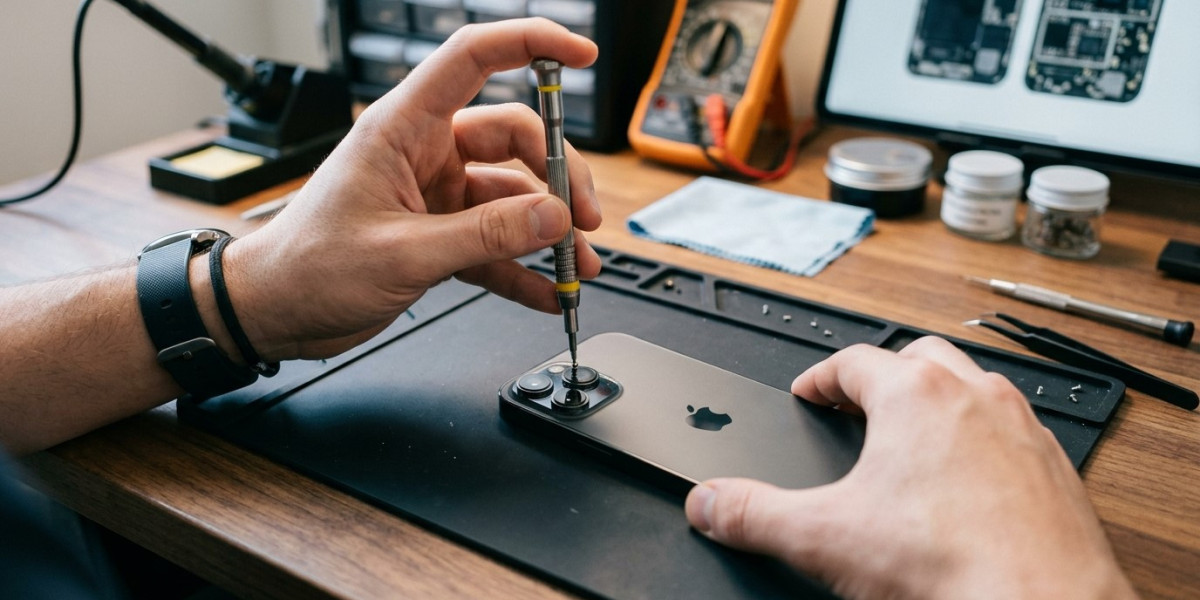

The iPhone camera is one of the most frequently used features of the device. Whether you are taking family photos, scanning documents, recording videos, or using social media, a camera that will not focus can be frustrating. You may notice blurry images, difficulty focusing on nearby objects, a camera that constantly shifts focus, or an image that remains blurry no matter what you do.
Fortunately, not every camera focusing problem means that the camera needs to be replaced. Sometimes the issue is caused by a dirty camera lens, an incorrect camera setting, a software glitch, or an application problem. In other cases, physical damage, liquid exposure, or internal camera failure may require professional repair.
If your camera continues to have focusing problems, professional iPhone repair Brooklyn NY can help determine the underlying cause. Avenue D Cellular provides professional diagnostics and repair services for common iPhone issues, including camera problems, display repairs, battery replacement, and iPhone screen repair Brooklyn.
Why Is My iPhone Camera Not Focusing?
Several issues can cause an iPhone camera to have difficulty focusing.
Common causes include:
- A dirty camera lens
- Smudges or fingerprints
- A damaged camera lens
- Software glitches
- Camera application problems
- Incorrect focus distance
- Low lighting conditions
- A case blocking the camera
- Physical damage
- Liquid exposure
- Internal camera component failure
The first step is identifying whether the problem affects the front camera, rear camera, or both.
1. Clean the Camera Lens
A dirty lens is one of the simplest and most common reasons for blurry photos.
Fingerprints, dust, oil, and other debris can prevent the camera from producing a clear image.
Use a soft, clean, lint-free cloth to gently clean the camera lens.
Avoid using rough materials that could scratch the lens.
After cleaning the lens, open the camera application and test whether the image becomes clearer.
If the camera still will not focus, continue with additional troubleshooting.
2. Remove Your iPhone Case
Some cases can interfere with the camera if they are poorly fitted or damaged.
Remove the case temporarily and test the camera.
Check whether:
- The camera opening is properly aligned.
- The case is blocking part of the lens.
- The camera area is dirty.
- The case has been damaged after a drop.
If the camera focuses normally without the case, replace the case with one designed specifically for your iPhone model.
3. Tap the Screen to Focus
The iPhone camera allows you to select a focus point.
Open the Camera app and tap the object or area you want to focus on.
The camera should attempt to adjust focus.
Try focusing on objects at different distances.
For example, test:
- A nearby object
- An object several feet away
- A distant object
If the camera focuses at one distance but not another, the issue may help identify whether the problem is related to focusing behavior or the camera hardware.
4. Move to Better Lighting
Low-light environments can make it difficult for a camera to focus.
Move to a brighter location and test the camera again.
Avoid pointing the camera directly toward extremely bright lights, as this can also affect image quality.
If the camera focuses normally in good lighting but struggles in dark environments, the problem may be related to normal camera limitations rather than hardware damage.
5. Close and Reopen the Camera App
A temporary software problem can affect camera performance.
Close the Camera app completely and reopen it.
Then test whether the camera focuses correctly.
If the problem only occurs occasionally, restarting the application may resolve it.
You should also check whether the problem occurs in other applications that use the camera.
6. Restart Your iPhone
Restarting your iPhone can resolve temporary software glitches.
Turn the device off and restart it.
After it turns back on, open the Camera app and test the focus.
If the camera works normally after restarting, monitor the device to see whether the problem returns.
If focusing problems continue, further troubleshooting may be necessary.
7. Update iOS
Software updates can include bug fixes and improvements related to camera performance.
Check whether an appropriate iOS update is available for your device.
If an update is available, install it according to the normal update process.
After updating, restart the iPhone and test the camera again.
Keeping iOS updated can help prevent software-related issues.
8. Test the Camera in Other Apps
Some applications use the iPhone camera differently.
Test the camera using another application that has camera access.
For example, you can compare the camera's performance in a social media or video application with the standard Camera app.
If the camera focuses normally in one application but not another, the problem may be related to the specific app.
Try updating the app or reinstalling it if necessary.
If the camera fails to focus in every application, the issue may be related to the camera system or hardware.
9. Check for Physical Damage
If your iPhone was dropped before the focusing problem started, physical damage may be responsible.
A drop can affect the camera module even if the lens does not appear broken.
Look for signs such as:
- Cracked camera glass
- Camera shaking
- Blurry images
- A constantly moving focus
- Camera app errors
- Black camera screen
If the camera started malfunctioning after an impact, professional iPhone repair Brooklyn NY can help determine whether the camera module or another component has been damaged.
10. Check for Camera Shaking or Vibrating
If the camera image shakes, vibrates, or makes unusual movements while trying to focus, there may be a hardware issue.
The camera uses internal components to assist with focusing and image stabilization.
Physical damage can affect these components.
If the camera repeatedly shakes or cannot maintain focus, professional diagnosis is recommended.
Avoid repeatedly shaking or hitting the phone in an attempt to fix the camera, as this can cause additional damage.
11. Consider Liquid Exposure
Liquid exposure can affect the camera and other internal components.
If the focusing problem began after water or another liquid entered the phone, internal damage may be possible.
Other symptoms may include:
- Camera fogging
- A black camera screen
- Speaker problems
- Charging issues
- Display problems
Professional inspection can help determine whether liquid exposure has affected the device.
12. Check the Camera Lens for Scratches or Damage
Sometimes the lens itself may be damaged.
Inspect the camera glass under good lighting.
Look for:
- Cracks
- Scratches
- Chips
- Cloudiness
- Condensation
A damaged lens can affect image clarity and make it appear as though the camera cannot focus.
If the camera glass is cracked or heavily scratched, professional repair may be necessary.
When Should You Get Professional iPhone Repair?
Professional service may be necessary if:
- The camera will not focus after basic troubleshooting.
- The camera shakes or vibrates.
- The camera lens is damaged.
- The issue began after a drop.
- The phone was exposed to liquid.
- The camera shows a black screen.
- The camera does not work in multiple applications.
- Software updates do not solve the issue.
A professional technician can inspect the camera and determine whether the problem is related to the lens, camera module, software, or internal hardware.
If your device also has physical display damage, professional iPhone screen repair Brooklyn may be needed.
How to Prevent iPhone Camera Problems
Protecting your iPhone can help reduce camera damage.
Use a properly fitted case that protects the camera area.
Avoid placing the phone directly on rough surfaces that may scratch the camera lens.
Clean the camera lens regularly with a soft cloth.
Keep the device away from water and other liquids.
Avoid dropping the phone because impacts can damage the internal camera module even when the outside looks normal.
Why Choose Avenue D Cellular?
If you are searching for dependable iPhone repair Brooklyn NY, Avenue D Cellular provides professional diagnostic and repair services for many common iPhone problems.
Services can include:
- Camera diagnostics
- Camera repair
- Screen replacement
- iPhone screen repair Brooklyn
- Battery replacement
- Charging port repair
- Speaker and microphone repair
- Software troubleshooting
- General iPhone hardware diagnostics
Professional evaluation can help determine whether your camera focusing problem is caused by a dirty lens, software issue, physical damage, or internal camera failure.
Final Thoughts
An iPhone camera that will not focus can make it difficult to capture clear photos and videos. Fortunately, many focusing problems can be resolved with simple troubleshooting.
Start by cleaning the camera lens, removing the case, tapping the screen to select a focus point, and testing the camera in better lighting. You should also restart your iPhone, update iOS, and test the camera in different applications.
If the camera continues to produce blurry images, shakes while focusing, or stopped working after a drop or liquid exposure, the problem may involve hardware.
For reliable iPhone repair Brooklyn NY, Avenue D Cellular provides professional diagnostic and repair services for camera problems, displays, batteries, charging systems, and other iPhone components. Whether you are experiencing camera focusing issues or need iPhone screen repair Brooklyn, professional diagnostics can help restore your device's performance and functionality.